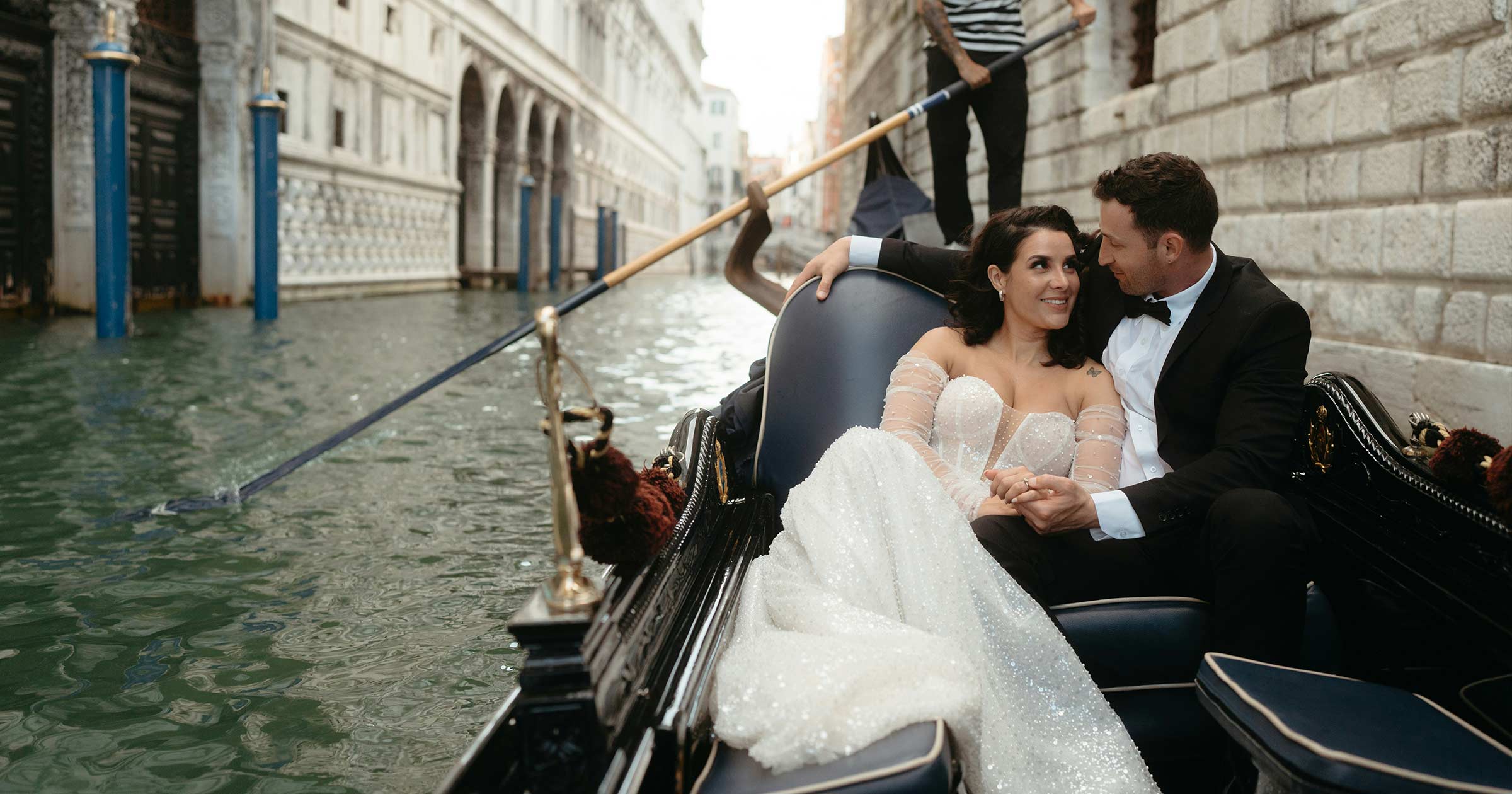
You’ve shot a wedding in Italy; the couple lives in London, and half the guests are the bride’s relatives—whose native language isn't English. The film is edited, the photos are selected, and the link is ready. Only the final step remains: delivery. And this is often where a small but noticeable issue arises: the gallery’s buttons, captions, and pop-ups appear in a language not everyone understands.
Now, in OurStoria, you can select the client gallery language individually for each project. You decide in which of the eight languages the couple and their loved ones will see the buttons, navigation, the download window, and the password prompt—and this choice doesn't affect your other projects.
In this article, we’ll explore how this feature works, exactly what gets translated versus what remains as your custom text, and how to prepare a delivery that makes sense to a specific couple.
Why the gallery language is part of the service
Delivering wedding media is about more than just transferring files. For the couple, it’s the first moment they see their day from an outside perspective. For parents and grandparents, the gallery often becomes the primary way to watch the full film and save the photos. If the interface surrounding the film is confusing, attention is diverted: the viewer ends up searching for the download button, wondering what a specific icon means, or figuring out where to enter a password.
This is particularly relevant for professionals working with international couples and destination weddings. The filming location, the couple's country of residence, the native language of each partner, and the language of their families are four separate questions, and the answers often don't match. While an English-language gallery works for many, it doesn't suit everyone. Now, you can tailor the language to the specific people involved.
How it works
The language setting is located within the individual project rather than in the general account settings. This is a crucial distinction: a single videographer or photographer might deliver one wedding gallery in German, another in Romanian, and a third in English—all in the same week. Each project retains its own language setting.
Available languages
You can currently choose from eight languages:
- English
- Українська (Ukrainian)
- Deutsch (German)
- Français (French)
- Italiano (Italian)
- Español (Spanish)
- Português (Brasil) (Portuguese, Brazil)
- Română (Romanian)
A single language is selected for each project. English remains the default: all your existing projects will continue to open in English unless you manually change the setting. Nothing will switch unexpectedly for you or for clients who have already received a link.
Who can use this feature
The gallery language selection feature is available to project owners on all subscription plans. It is supported across all 14 existing gallery templates. A quick clarification: this doesn't mean every template is available on every plan—your template selection still depends on your specific subscription tier. However, whichever of your available templates you choose, the selected language will be applied to it.
What the client sees
The client simply opens the standard gallery link. There is no need for them to register, look for a language switcher, or configure any settings. The gallery opens immediately in the language you selected for the project.
If the gallery is password-protected, the password entry form also appears in the chosen language; the language is determined before the user even enters the gallery. It may seem like a minor detail, but that form is the first point of contact with the delivered project. An error message in an unfamiliar language is hardly the best way to start watching a wedding film.
Downloading: where clarity matters most
You can watch the film without reading a single label, but downloading it is a different story. In the download window, the user needs to understand exactly what they are saving to their phone or computer. For many of the couple's relatives, this is the only time they truly interact with the gallery interface: opening the link, watching the content, and saving it. That is why the video and photo download window is translated along with the rest of the interface. If you regularly receive messages asking "how do I download this?" after delivering the project, the gallery language is one of the first things you should check.
Language is based on client preference, not country
OurStoria does not automatically determine the gallery language based on the viewer's country, IP address, or location. You set the language yourself, and the most reliable way to do so is simply to ask the couple.
A country and a language are not the same thing. A couple getting married in Portugal might live in Germany. A couple from Canada might prefer French or English. In many families, one language is spoken at home while another is used in daily life. People living in Spain might request a gallery in Romanian because their parents will be the primary viewers. The only reliable source of information is the client themselves.
What gets translated vs. what remains as-is
It is important to understand the distinction here. This feature translates the gallery’s system interface—the elements created by OurStoria. It does not touch or automatically translate your original, custom content.
What gets translated
- gallery buttons and navigation;
- the video and photo download window;
- slideshow elements;
- the password entry form and error messages;
- related utility screens;
- the standard system greeting (unless you have set a custom message).
What remains as-is
- the couple's names;
- video and file titles;
- your custom message, if you wrote one;
- studio details.
This approach preserves your unique voice. Automatically translating text written for a specific couple could distort the tone, names, or inside jokes shared only between you and the newlyweds. Therefore, everything you write is displayed exactly as you wrote it.
What the feature does not do
To avoid unrealistic expectations, here is a clear list of what it does not do:
- it does not change the language of your dashboard or the entire OurStoria site—this setting applies only to the client gallery;
- it does not translate spoken audio in videos or generate subtitles;
- it does not alter the original photos or videos;
- native video player elements may depend on the viewer's browser or device language;
- the standalone Live Moments app is not included in this localization.
Step-by-step instructions
- Open the Dashboard and select the desired project.
- Go to the Gallery tab.
- Locate the Gallery language section and select a language from the list.
- Click Save language and wait for the Language saved confirmation.
- Open the gallery link and view it from the client's perspective: check the buttons, the download window, and—if applicable—the password form.
If a couple requests a different language after receiving the link, simply return to the same section and save the new language. The gallery link itself remains unchanged.
How to prepare a clear delivery for a specific couple
Choosing the language is only part of the process. The rest depends on how you craft the custom content surrounding the interface. Here is a quick checklist.
Ask about the language in advance
A good time to do this is when signing the contract or during the final call before the shoot. You can phrase the question simply: "In which language would you and your families prefer to view the gallery?" Pay attention to the second part of the question: the couple might speak English fluently, but they may forward the link to parents who do not read English.
Write your greeting in the client's language
Your custom message is not automatically translated, so write it directly in the appropriate language—or use the standard system greeting, which is automatically translated. If you are writing in a language you do not speak fluently, ask a native speaker to check the text. A single awkward phrase in a personal message stands out more than you might think.
Consider your video and file names
Video and file names appear exactly as you have named them. Terms like "Highlight Film," "Ceremony," and "Speeches" are widely understood, but not by everyone. You can name the films in the couple's language, choose neutral titles, or use the couple's names and the date. The most important thing is that the person opening the gallery understands exactly what they are about to watch or download.
Consider multilingual families
A single interface language is selected for each project. If a couple has families speaking different languages, discuss with them which language to choose. Often, the couple knows who might struggle more with the interface and chooses the language that best suits the person who needs the most help. You can, however, write your welcome message in two languages—the text is entirely under your control.
Check the gallery before sending
Open the link yourself before sending it. If the gallery is password-protected, open it in a private browser window; this allows you to see the password form exactly as the client will see it.
Examples: how this can look in practice
The scenarios below are hypothetical. These are not stories about real clients, but illustrations of how a single setting can help in various situations.
A wedding in Tuscany, families in two countries
Imagine a videographer from Florence is filming a wedding for a couple living in Munich. The bride grew up in Italy, and the groom in Germany. During a call, the couple mentions that they primarily want to show the film to the groom's parents—who are more comfortable with German—while the Italian side of the family will easily figure it out on their own. The videographer selects Deutsch for the gallery interface and writes the welcome message in both German and Italian.
Destination wedding in Portugal
A hypothetical couple from Brazil is celebrating their wedding on the Portuguese coast. While Portuguese is the shared language, the couple requests the Brazilian variant because their families in São Paulo will be viewing the gallery. The photographer selects Português (Brasil) and maintains this choice for the photo album and video titles.
One week, three languages
A hypothetical studio based in Bucharest delivers three projects in a single week. The first couple asked for Romanian, so the gallery is set to Română. The second couple lives in Lyon and prefers French, so the gallery is set to Français. The third is an international couple who communicate in English, so the default language is kept for them. Each project retains its own setting, so the studio doesn't need to change anything at the account level.
When the country doesn't tell the whole story
A couple lives in Barcelona, and the wedding is taking place there too. One might assume Español would be appropriate, but a call reveals that the couple moved from Ukraine and their grandparents will be the first to view the gallery. The couple requests Українська (Ukrainian). This is a perfect example of why asking the client works better than making assumptions.
Handling existing projects
All projects created before this setting was introduced remain in English. If you have galleries that clients revisit, forward to relatives, or open at a later date, you can go back and select the appropriate language. The link remains unchanged, and the client doesn't need to do anything on their end.
Before changing the language, check the project's welcome message. If it contains your own custom text, it will remain in the language you originally wrote it in; you might want to update it to match the new interface language.
The bottom line
The gallery language setting may seem like a small detail, but it shapes the way the couple and their loved ones first experience your work. An interface in a familiar language eliminates unnecessary questions and keeps the focus where it belongs—on the film and photos—while ensuring your words, names, and titles appear exactly as you intended.
Open the settings for an existing project, go to the Gallery tab, and select the language that works best for your client.