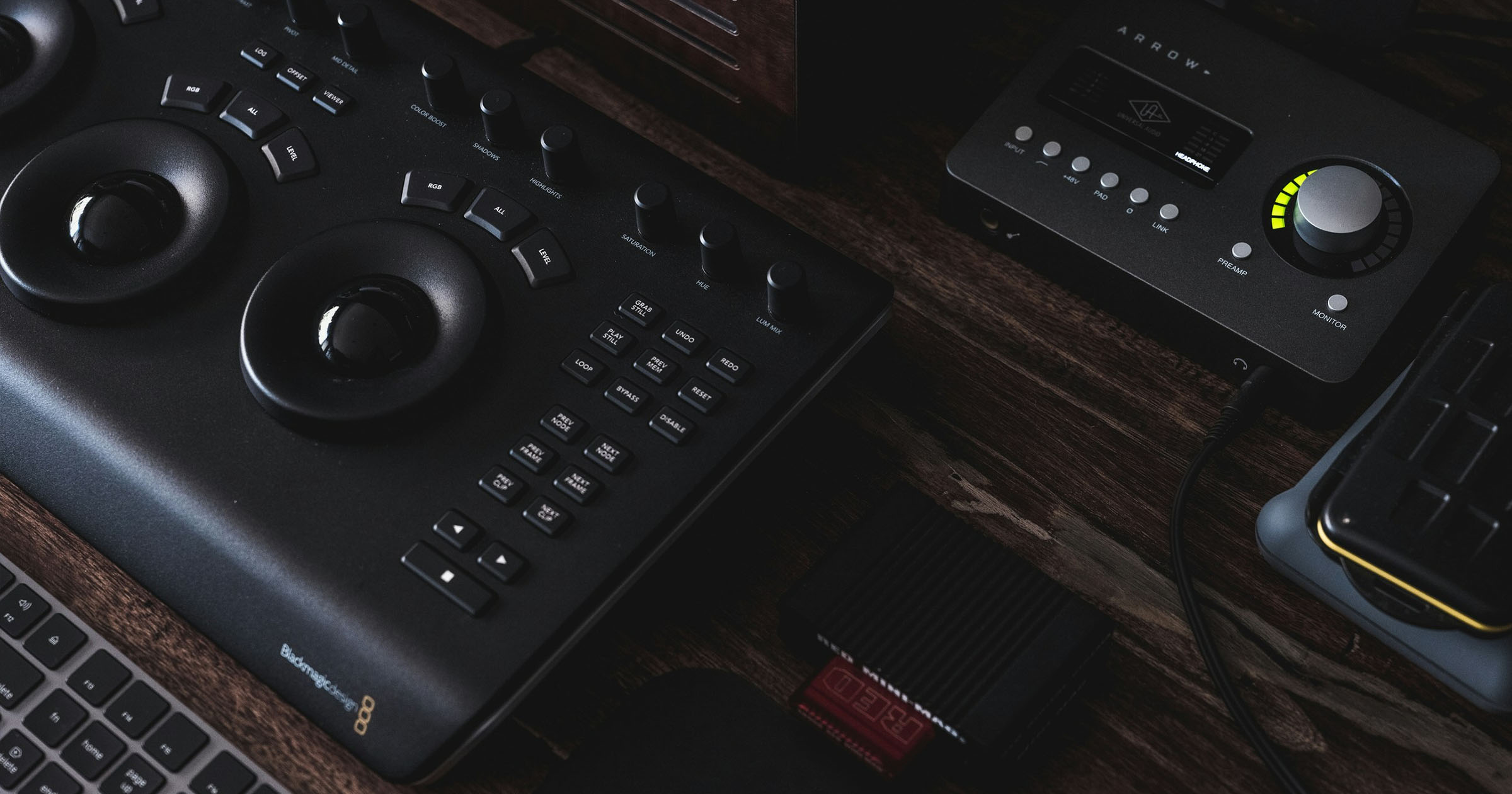
DaVinci Resolve has rapidly become the go-to NLE for wedding videographers — and for good reason. The free version alone offers a professional color grading suite, Fairlight audio tools, and a deliver page that rivals software costing hundreds. But here's the problem: Resolve's export settings are confusing, and the wrong configuration means your client can't play their wedding film, the video buffers endlessly, or the quality looks washed out on their TV.
This guide gives you the exact export settings for delivering wedding videos from DaVinci Resolve — whether you're exporting a highlight reel, a full ceremony, or a same-day edit. We'll cover H.264 vs H.265, the critical faststart setting most editors miss, archive-grade exports, and how to build reusable presets so you never second-guess your render settings again.
Recommended Export Settings for Wedding Video Delivery
These are the definitive settings for exporting a client-ready wedding film from DaVinci Resolve. They maximize compatibility across devices (phones, tablets, smart TVs, laptops) while preserving the cinematic quality your clients expect.
| Setting | Value | Notes |
|---|---|---|
| Format | MP4 | Universal container — plays everywhere |
| Codec | H.264 | Main Profile for maximum device compatibility |
| Resolution | Match source | Typically 3840×2160 (4K) or 1920×1080 |
| Frame Rate | Match source | 23.976, 24, 25, 29.97, or 30 fps |
| Bitrate Type | Variable (Best) | Let encoder allocate bits where needed |
| Bitrate (4K) | 80–100 Mbps | 80 for ceremonies, 100 for highlights with fast motion |
| Bitrate (1080p) | 30–50 Mbps | 30 for speeches, 50 for cinematic highlights |
| Audio Codec | AAC | Universal audio format |
| Audio Sample Rate | 48 kHz | Standard for video production |
| Audio Bitrate | 320 kbps | High enough for music + vows clarity |
| Data Levels | Auto | Resolve handles the conversion correctly |
| Network Optimization | Enabled | "Optimize for Network Streaming" = faststart |
Navigate to the Deliver page in Resolve, select Custom Export, and enter these values. The most important setting people miss is the network optimization checkbox — we'll explain why below.
Why Main Profile H.264?
H.264 has three profiles: Baseline, Main, and High. Main Profile strikes the best balance between compression efficiency and compatibility. High Profile produces slightly smaller files but can cause issues on older smart TVs and budget Android devices. For wedding delivery — where you cannot control what device your client uses — Main Profile is the safest choice.
Why Variable Bitrate?
Variable bitrate (VBR) lets the encoder allocate more data to complex scenes (confetti toss, sparkler exits, fast-moving first dances) and less to static shots (table details, wide establishing shots). This produces better quality per megabyte compared to constant bitrate (CBR). In Resolve, select "Best" quality under the variable bitrate option for optimal results.
Export Settings for Archive
Client delivery files are compressed. If a couple returns in five years wanting a re-edit — maybe for an anniversary cut or to add footage from a second shooter — you don't want to work from a compressed H.264 master. You need an archive-grade export.
| Setting | Archive Value |
|---|---|
| Format | MOV |
| Codec | Apple ProRes 422 HQ or DNxHR HQ |
| Resolution | Match timeline (4K or 1080p) |
| Frame Rate | Match timeline |
| Audio | Linear PCM, 48 kHz, 24-bit |
ProRes 422 HQ maintains near-lossless quality with relatively manageable file sizes (~330 Mbps for 4K). It's the industry standard for post-production archival. DNxHR HQ is the Avid-originated alternative that performs identically — choose whichever your system handles more smoothly.
Archive exports are significantly larger: a 10-minute 4K highlight in ProRes 422 HQ will be approximately 25 GB versus ~7 GB for the H.264 delivery version. Plan your long-term storage accordingly — these files are for your internal archive, not for client delivery. For a detailed breakdown of file sizes across formats, see our wedding video file size guide.
H.264 vs H.265 for Wedding Delivery
This is one of the most debated topics in wedding videography forums, and the answer is more nuanced than most tutorials suggest.
H.264 (AVC)
- Supported on 99.8% of devices in active use worldwide
- Plays natively in every browser, phone, tablet, smart TV, and media player
- Larger file sizes at equivalent quality
- Available in DaVinci Resolve Free
- Encoding is fast, even on CPU-only systems
H.265 (HEVC)
- 35–40% smaller files at the same visual quality
- Device support at approximately 78% — breaks on older iPhones (pre-iPhone 7), older Android devices, Windows 7/8 PCs without codec pack, and some smart TVs
- Requires DaVinci Resolve Studio ($295 one-time) for encoding
- Encoding is 2–4× slower than H.264
- Some delivery platforms re-encode H.265 uploads, negating the quality advantage
The Verdict
Use H.264 for client delivery. You cannot predict whether your client will watch on a 2024 MacBook Pro or a 2017 Samsung smart TV. One unplayable video destroys the delivery experience. The file size savings of H.265 (roughly 3–4 GB on a highlight reel) are not worth the compatibility risk.
Use H.265 for personal archive if you want to save storage space on your own drives and you know you'll always have compatible playback software available.
Research on video codec efficiency supports this approach: H.264 achieves near-transparent quality at 80 Mbps for 4K content, as established by the ITU-T H.264 specification and confirmed by SSIMWAVE quality benchmarks. Below 50 Mbps for 4K, compression artifacts become visible in high-detail wedding scenes — confetti, intricate fabric textures, shallow depth-of-field bokeh, and fast-moving sparkler exits all suffer from insufficient bitrate allocation in complex prediction frames.
Studies on format compatibility and device fragmentation underscore the delivery recommendation. As of 2025, H.264 plays natively on 99.8% of devices in active use worldwide, while H.265 hardware decoding support sits at approximately 78% according to Can I Use data cross-referenced with StatCounter device statistics. For client delivery — where you cannot control the playback device, the operating system version, or whether codec packs are installed — H.264 in an MP4 container remains the only universally safe choice.
The Faststart Setting (Critical)
This is the single most impactful setting that wedding videographers miss — and it's the most common reason clients report that a video "takes forever to start playing" or "won't play until it's fully downloaded."
What Faststart Does
Every MP4 file contains a moov atom — a chunk of metadata that tells the player how the video is structured (where each frame is, audio sync points, duration, codec info). By default, most encoders write the moov atom at the end of the file.
This means: the player must download the entire file before it can start playback. For a 10 GB ceremony video, that's unusable for streaming.
Faststart (also called qt-faststart or moov atom relocation) moves this metadata to the beginning of the file. The player reads the metadata first, then begins streaming immediately — even before the file is fully downloaded.
Where to Find It in DaVinci Resolve
- Go to the Deliver page
- Set your format to MP4
- Click Advanced Settings (gear icon or expand arrow)
- Check "Optimize for Network Streaming"
That checkbox is DaVinci Resolve's label for faststart. It's unchecked by default. Always enable it for any file that will be streamed or played online.
Why It Matters for Wedding Delivery
Your client isn't going to download a 10 GB file to their phone before watching. They'll tap the link and expect instant playback. Without faststart:
- Browser-based players show a blank screen or infinite loading spinner
- Mobile devices may timeout before the moov atom is reached
- Smart TV apps often refuse to play the file entirely
- Even local playback on some devices requires buffering the full file first
If you're delivering through a proper video delivery platform, the platform should handle faststart automatically. OurStoria streams the original uploaded file without re-encoding, so your faststart-enabled export plays instantly for the client. But if you're sharing via Google Drive, Dropbox, or direct download links — faststart is entirely your responsibility.
For more on why videos fail to play on client devices, see our guide on wedding video not playing on iPhone.
Common Export Mistakes
After helping thousands of videographers troubleshoot delivery issues, these are the mistakes we see repeatedly:
1. Exporting ProRes for Client Delivery
ProRes is an editing codec, not a delivery codec. A ProRes file won't play on most Windows PCs, Android phones, or smart TVs without installing additional software. Your client shouldn't need to install VLC or a codec pack to watch their wedding. Export ProRes only for your archive; deliver in H.264 MP4.
2. Mismatched Frame Rate
If your timeline is 23.976 fps and you export at 30 fps, Resolve will either duplicate frames (causing micro-stutters) or re-time your footage. Always match your export frame rate to your timeline frame rate. Check your timeline settings before rendering: Project Settings → Master Settings → Timeline Frame Rate.
3. Forgetting Faststart
As covered above — this causes streaming failures. Make it part of your export checklist every single time.
4. Bitrate Too High for Streaming
While higher bitrate means better quality, there's a practical ceiling. A 200 Mbps file requires a sustained 200 Mbps internet connection for smooth streaming. Most home connections can't handle that. Stick to 80–100 Mbps for 4K and 30–50 Mbps for 1080p — these are well within most broadband speeds while maintaining excellent visual quality.
5. Exporting MOV Instead of MP4
MOV and MP4 are both container formats and can hold identical codec data. However, MP4 has broader device support — particularly on Android devices, Windows PCs, and web browsers. Some older smart TVs refuse MOV files entirely. Unless you have a specific reason (Apple ecosystem-only delivery), always choose MP4.
6. Leaving Color Space on "Auto" When Using ACES or DaVinci Wide Gamut
If you're working in an ACES or DaVinci Wide Gamut/Intermediate color pipeline, make sure your output color space is set to Rec.709 Gamma 2.4 for delivery. Leaving it on the working space will produce washed-out or oversaturated video on consumer displays.
7. Not Checking Audio Levels
Export at audio levels that peak between -3 dB and -1 dB. Wedding videos often have quiet vow sections followed by loud reception music. Use Resolve's Fairlight page to normalize your audio before export — clients shouldn't need to constantly adjust their volume.
Export Presets: Create Your Own
Manually configuring export settings for every project is tedious and error-prone. DaVinci Resolve lets you save custom presets that you can apply with a single click.
Step-by-Step: Creating a Wedding Delivery Preset
- Navigate to the Deliver page
- Select Custom Export from the render settings panel
- Configure all settings as outlined in our recommended table above:
- Format: MP4
- Codec: H.264, Main Profile
- Resolution: match timeline
- Frame Rate: match timeline
- Quality: Best, Variable Bitrate
- Bitrate: set your preferred value (e.g., 80 Mbps for 4K)
- Audio: AAC, 48kHz, 320kbps
- Advanced: Enable "Optimize for Network Streaming"
- Click the three-dot menu (⋮) next to the preset name at the top of the render settings
- Select "Save as New Preset"
- Name it clearly — e.g.,
Wedding Delivery 4K H264orWedding Delivery 1080p - Click Save
Create separate presets for your common scenarios:
Wedding Delivery 4K— H.264, 80 Mbps, 4K, faststart ONWedding Delivery 1080p— H.264, 35 Mbps, 1080p, faststart ONWedding Archive 4K— ProRes 422 HQ, 4KSocial Media 1080p— H.264, 15 Mbps, 1080p, faststart ONSame-Day Edit— H.264, 50 Mbps, 1080p, faststart ON (optimized for speed)
Your presets sync with your Resolve database, so they'll be available across all projects on that machine. If you work across multiple systems, export your preset library: DaVinci Resolve → Preferences → User → Presets → Export.
DaVinci Resolve Free vs Studio for Export
The free version of DaVinci Resolve is remarkably capable, but there are meaningful differences in the export pipeline that affect wedding videographers.
| Feature | Free | Studio ($295) |
|---|---|---|
| H.264 encoding | Yes | Yes |
| H.265 (HEVC) encoding | No | Yes |
| Maximum export resolution | 4K (3840×2160) | 32K |
| GPU-accelerated encoding | Limited | Full (NVIDIA/AMD/Intel) |
| Noise reduction (export) | Basic spatial | Temporal + Spatial (GPU) |
| HDR delivery (HDR10, HLG) | No | Yes |
| Multi-GPU rendering | No | Yes |
| Render speed (typical) | Baseline | 2–3× faster (GPU encoding) |
| 10-bit output | No | Yes |
Is Studio Worth It for Wedding Work?
For most wedding videographers: yes. The GPU-accelerated encoding alone saves hours per week. A 10-minute 4K highlight that takes 25 minutes to render on CPU (Free) might take 8 minutes with GPU encoding (Studio). Multiply that across 30+ weddings per year, and Studio pays for itself quickly.
If you're just starting out and budget is tight, the free version handles H.264 delivery perfectly. Upgrade to Studio when render times become a bottleneck or when you want H.265 archival encoding.
Render Speed Optimization Tips
Regardless of whether you're on Free or Studio, these settings affect your render time:
- Use "Render Cache" before export — pre-render complex effects (color grading, Fusion compositions) by setting Playback → Render Cache to Smart. When you export, cached sections render instantly.
- Close other applications — Resolve uses all available RAM and GPU memory. Background apps compete for resources.
- Use an SSD for your cache and render destination — writing to a mechanical drive bottlenecks 4K exports. NVMe SSDs provide the fastest write speeds.
- Match timeline proxy mode — if you edited with optimized media, make sure to disable "Use Optimized Media" in the deliver page so you render from original source files.
- Batch render overnight — queue all your deliverables (highlight, ceremony, speeches, social cuts) and render the batch while you sleep. Use Resolve's job queue on the Deliver page.
After Export: Delivering Your Film
You've spent hours color grading, syncing audio, and crafting the perfect edit. You've exported with optimal settings. Now what?
The delivery method matters just as much as the export settings. If you upload a beautifully exported 4K file to a platform that re-encodes it at a lower bitrate, your careful settings are wasted. Common pitfalls:
- YouTube/Vimeo — re-encode everything, often at lower bitrates. Fine for portfolio, not for client delivery.
- Google Drive/Dropbox — no re-encoding (good), but also no streaming optimization, no branded experience, and no download analytics.
- WeTransfer — files expire after 7 days. Clients lose access.
A purpose-built video delivery platform solves these problems. OurStoria streams your original file — no re-encoding, no quality loss. Your faststart-enabled H.264 export plays instantly in the browser, on any device, exactly as you graded it. Clients get a branded gallery they can share with family, download in original quality, and access indefinitely.
For a comprehensive walkthrough of the entire delivery process from timeline to client, read our guide on how to deliver wedding video to client.
Complete Export Workflow Checklist
Use this checklist before every render to ensure consistent, trouble-free delivery:
- Confirm timeline frame rate matches your source footage
- Check output color space is Rec.709 Gamma 2.4
- Set format to MP4, codec to H.264 Main Profile
- Set bitrate: 80–100 Mbps (4K) or 30–50 Mbps (1080p), variable
- Set audio to AAC, 48 kHz, 320 kbps
- Enable "Optimize for Network Streaming" (faststart)
- Disable "Use Optimized Media" and "Use Render Cached Images" unless intentional
- Verify audio peaks between -3 dB and -1 dB
- Add to render queue and render
- After render: spot-check playback on phone + browser before delivering to client
Closing Thoughts
Export settings aren't glamorous, but they're the last technical step between your creative work and your client's experience. A perfectly edited wedding film that won't play on a client's TV — or that takes three minutes to buffer — undermines everything that came before it.
The settings in this guide are battle-tested across thousands of wedding deliveries. H.264 MP4 at 80–100 Mbps with faststart enabled is the gold standard for 4K wedding delivery in 2025. It plays everywhere, streams instantly, and looks cinematic on any screen.
For a broader view of the wedding video production pipeline — from shooting to editing to delivery — explore our wedding video complete guide. And if you're evaluating your delivery and storage options, OurStoria is built specifically for videographers who refuse to compromise on quality.
Related Articles
- Wedding Video Complete Guide
- Wedding Video Not Playing on iPhone — Fixes
- Wedding Video File Size Guide
- How to Deliver Wedding Video to Client
- Wedding Video Editing Services
- Cinematic Wedding Videographer Platform
- Best Wedding Videography Editing Software in 2026
- Video Delivery Platforms: Complete Guide